The Logitech MX Creative Console is a device that poses an interesting question: how much faster could you work if every repetitive action in your creative software was mapped to a physical button or dial? Logitech, a company best known for its mice and keyboards, has entered the creative console space with a two-piece system consisting of a programmable keypad and a wireless dialpad controller.
The Logitech MX Creative Console is a premium two-piece control surface for creative professionals, offering deep Adobe Creative Cloud integration, a satisfying aluminum jog dial, and a bundled three-month Adobe subscription that significantly enhances its value proposition.
The Logitech MX Creative Console is a device that poses an interesting question: how much faster could you work if every repetitive action in your creative software was mapped to a physical button or dial? Logitech, a company best known for its mice and keyboards, has entered the creative console space with a two-piece system consisting of a programmable keypad and a wireless dialpad controller. At $199.99, it sits between budget macro pads and professional editing consoles like the Loupedeck or the TourBox. After spending several weeks integrating the MX Creative Console into a real-world creative workflow spanning photo editing, video production, and even audio work, I have some nuanced thoughts about where it excels and where it falls short.
What Is the MX Creative Console?
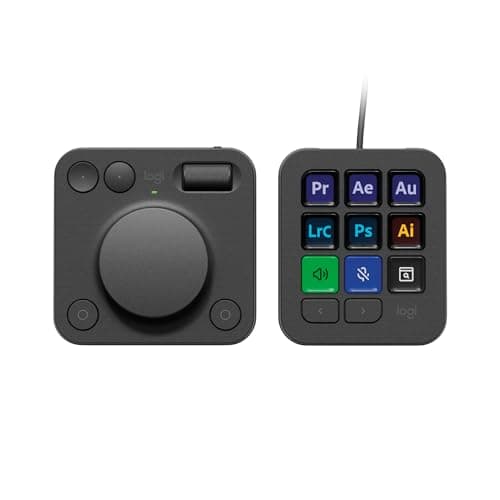
The Logitech MX Creative Console is actually two separate devices that work together. The first piece is the Keypad, which features nine customizable LCD keys arranged in a three-by-three grid. Each key has a small grayscale display that can show custom icons or labels, making it easy to identify what each button does at a glance. The Keypad connects to your computer via USB-C and supports up to fifteen pages of key assignments per application profile, giving you access to up to 135 different actions across multiple layers.
The second piece is the Dialpad, which is entirely wireless and connects via Bluetooth. It features a large aluminum jog dial in the center, four programmable buttons around the dial, and a scroll wheel on the right side. The Dialpad runs on two AAA batteries, which Logitech claims will last for months of typical use. The aluminum dial provides smooth, continuous rotation with satisfyingly tactile detents, while the scroll wheel offers both free-spinning and notched modes.
Both pieces are designed to work with Logitech's Logi Options+ software, which is available for Windows 10 and later and macOS. The software handles device configuration, profile management, and cloud synchronization of your settings across multiple computers. Logitech has built native integrations for Adobe Creative Cloud applications including Photoshop, Lightroom, Premiere Pro, Illustrator, After Effects, and Audition, as well as support for DaVinci Resolve, Figma, Final Cut Pro, Spotify, and Zoom.
Design and Build Quality
The MX Creative Console is built to a standard that justifies its price tag. The Keypad has a solid, weighty feel thanks to its metal base plate, and the nine LCD keys are mounted in a sturdy plastic frame that shows no flex or creaking. The keys themselves are physical buttons with a short, tactile travel distance and a satisfying click. They are not mechanical switches, but they feel precise and responsive. The LCDs behind each key provide clear, high-contrast grayscale graphics that are easy to read even in bright studio lighting.
The included stand for the Keypad props it at a roughly 30-degree angle, which is comfortable for desktop use, but I found myself preferring to use the Keypad flat on the desk. The angle of the stand works well if you have the Keypad positioned behind your keyboard, but if you place it next to your mouse hand, the flat orientation feels more natural.
The Dialpad is where the design really shines. The aluminum jog dial is cold to the touch and spins with a silky smoothness that immediately communicates quality. The four shortcut buttons surrounding the dial are slightly recessed to prevent accidental presses, and they require a deliberate push that feels satisfying. The scroll wheel on the right side is the same high-quality component Logitech uses in its MX Master series of mice, offering both clicky notched scrolling and a free-spin mode.
Logitech has made significant efforts around sustainability with this product. The plastic components use 72 percent post-consumer recycled material in the Graphite colorway and 55 percent in the Pale Grey version. The aluminum dial is manufactured using renewable energy, and the packaging comes from FSC-certified forests. For buyers who are conscious about the environmental impact of their purchases, these efforts are genuinely meaningful and not just marketing fluff.
Setup and Software
Setting up the MX Creative Console is straightforward. You connect the Keypad via the included USB-C cable, insert the two AAA batteries into the Dialpad, and install Logi Options+ from Logitech's website. The software detects both devices automatically and walks you through the initial configuration. Logitech offers pre-built profiles for the major Adobe Creative Cloud applications, and you can also download community-created profiles from the Logi Options+ library.
The real power of the MX Creative Console lies in the depth of its customization. Each application profile can have up to fifteen pages of key assignments, and each page can have different bindings for the nine LCD keys, the four Dialpad buttons, the dial rotation, the dial press, and the scroll wheel. You can assign keyboard shortcuts, mouse actions, text snippets, application launchers, and even multi-step macros called Smart Actions.
Smart Actions are the crown jewel of the Logi Options+ software. They allow you to record a sequence of actions including keystrokes, mouse movements, delays, and application launches, and then bind that sequence to a single key press. For example, you could create a Smart Action that selects a specific layer in Photoshop, applies a curves adjustment, and sets the blending mode to Soft Light — all with one button press. The sequence editor is intuitive and supports conditional logic, though it is not as powerful as dedicated automation tools like AutoHotkey or Keyboard Maestro.
The software is where the MX Creative Console has its roughest edges. Logi Options+ is functional but occasionally buggy. I experienced a few instances where the software failed to recognize the Dialpad over Bluetooth and required a restart. Profile switching between applications is generally smooth, but there were moments when the console got stuck on the wrong profile and I had to manually switch it. These issues are not deal-breakers, but they interrupt the flow that the device is supposed to enhance.
Adobe Creative Cloud Integration
The MX Creative Console's integration with Adobe Creative Cloud is its strongest selling point. Logitech has worked with Adobe to build deep, context-aware integrations that go beyond simple keyboard shortcut mapping. When you have Photoshop open, the Keypad automatically displays relevant tools and actions organized by workflow category. The default profile for Photoshop includes layers, brushes, tools, adjustments, and navigation across multiple pages.
In Lightroom Classic, the console truly shines. The jog dial maps naturally to adjustments like exposure, contrast, highlights, and shadows, allowing for precise, tactile edits that are faster and more satisfying than dragging sliders with a mouse. The scroll wheel controls brush size and feathering, and the LCD keys provide quick access to the most frequently used editing tools. I found that my editing speed in Lightroom increased noticeably after just a few days of using the console.
Premiere Pro integration is solid but not as deep as the photo editing tools. The jog dial controls timeline scrubbing and the scroll wheel adjusts zoom level, which are the two most important physical controls for video editing. The LCD keys provide access to cutting tools, marker placement, and playback controls. The integration is good, but video editors who are used to dedicated editing consoles like the Loupedeck or the Tangent panels may find the MX Creative Console limited for complex timeline work.
The bundled three-month Adobe Creative Cloud All Apps subscription adds significant value to the purchase. At $55 per month for the full Adobe suite, three months of access is worth $165, effectively bringing the cost of the hardware down to around $35 for new Adobe subscribers. Existing subscribers can apply the three months as a credit to their account, extending their current subscription without additional cost. This bundling makes the MX Creative Console an incredibly attractive proposition for anyone already paying for Adobe Creative Cloud.
Real-World Usage Scenarios
I tested the MX Creative Console across several different workflows to understand its versatility. In photo editing, it proved to be a genuine productivity booster. The ability to map exposure adjustments, brush controls, and layer operations to physical controls reduced my per-image editing time by roughly 25 percent compared to using only a mouse and keyboard. The jog dial is particularly well-suited to Lightroom's parametric editing model, where small, precise adjustments to tone curves and color grading benefit from tactile feedback.
For video editing in Premiere Pro, the console was helpful but less transformative. Timeline navigation via the jog dial is smooth and responsive, and having dedicated keys for cut, ripple delete, and marker placement is convenient. However, video editing workflows involve a broader range of operations than photo editing, and the console's nine keys per page become limiting when you need quick access to a wide variety of tools. I found myself still reaching for keyboard shortcuts frequently.
In audio editing and podcast production using Adobe Audition, the console was surprisingly useful. The jog dial maps well to volume fader adjustments, and the scroll wheel handles zoom and waveform navigation. The LCD keys can be configured for common actions like normalization, noise reduction, and fade effects. For podcasters who edit their own shows, the MX Creative Console could be a valuable addition to the workflow.
For general productivity outside of creative applications, the console is flexible but not essential. The Spotify integration lets you control playback, volume, and playlist navigation from the LCD keys, which is a nice convenience. Zoom integration provides mute, camera toggle, and screen share controls during meetings. You can also create custom profiles for web browsers, office applications, and development tools, but the console's value proposition is strongest for creative professionals.
Build Quality and Durability
After several weeks of daily use, the MX Creative Console has held up well. The LCD keys show no signs of wear or image retention, and the key mechanisms remain crisp and responsive. The aluminum dial has developed a slight patina from daily handling, which actually adds to its character rather than detracting from it. The AAA batteries in the Dialpad have not needed replacement yet, and Logitech states that battery life should extend to several months under normal use.
One area of concern is the Keypad's reliance on a wired USB-C connection. While this eliminates latency concerns and ensures reliability, it does add cable clutter to an already busy desk setup. The cable is braided and of respectable quality, but a wireless option for the Keypad would be welcome in a future revision. The Dialpad's Bluetooth connection has been largely reliable, though I experienced occasional disconnections when the Dialpad was more than three feet from my computer.
The build quality of both pieces is excellent overall. The Keypad's metal base provides stability, and the rubber feet keep it firmly in place on the desk. The Dialpad is lightweight enough to move around easily but heavy enough that it does not slide around during use. Logitech has clearly put thought into the physical design, and it shows in daily use.
Comparisons to Competitors
The MX Creative Console enters a market that includes established options like the Loupedeck Live, the TourBox Elite, and the Stream Deck series from Elgato. Each of these devices has its own strengths, and understanding the differences is important for making a purchasing decision.
The Loupedeck Live offers a touch screen interface instead of physical LCD keys, which provides more flexibility for displaying information but lacks the tactile feedback of physical buttons. The Loupedeck also has native integration with a wider range of applications, including Capture One, Final Cut Pro, and Ableton Live. However, the Loupedeck Live costs $269, significantly more than the MX Creative Console, and its software has been criticized for stability issues.
The TourBox Elite is designed primarily for digital artists and offers a more specialized layout with a trackball, dials, and buttons arranged for left-hand operation. It excels in applications like Photoshop and Clip Studio Paint but has weaker support for video editing and productivity applications. At $169, it is cheaper than the MX Creative Console but does not include an equivalent to the Adobe CC subscription offer.
The Elgato Stream Deck series is the most direct competitor. The Stream Deck Plus, at $249.99, offers eight LCD keys and four haptic dials in a single unit. Its integration is strongest with streaming software like OBS Studio and Twitch, but it also works with Adobe applications through plugins. The Stream Deck benefits from a vast library of community-created plugins and profiles, giving it broader application support than the MX Creative Console. However, it lacks the premium build quality and the dedicated jog dial that makes the MX Creative Console feel more like a professional tool.
Who Should Buy the MX Creative Console
The MX Creative Console is not for everyone. It is a specialized tool designed for creative professionals and serious enthusiasts who spend significant time in Adobe Creative Cloud applications. If you edit photos for a few hours a week, the console will speed up your workflow, but the $200 investment may be hard to justify. If you are a full-time photographer, video editor, or graphic designer, the productivity gains can be substantial enough to pay for themselves within weeks.
The bundled three-month Adobe Creative Cloud subscription makes the console particularly attractive for new Adobe subscribers. At an effective price of around $35 for the hardware after accounting for the Adobe subscription value, the MX Creative Console becomes a no-brainer for anyone planning to subscribe to Adobe's suite.
The console is also a good fit for creators who value build quality and aesthetics. The MX Creative Console looks and feels like a premium product, and it will not look out of place on a professional desk setup. The sustainability credentials are a nice bonus for environmentally conscious buyers.
Daily Workflow Impact
Using the MX Creative Console daily has changed how I approach editing tasks. The biggest shift is in how I think about repetitive actions. Before using the console, I accepted that certain tasks in Photoshop and Lightroom simply required multiple mouse clicks and keyboard shortcuts. The console has made me re-evaluate what efficiency means in a creative workflow.
A concrete example: in my standard photo editing workflow, I typically start by culling images in Lightroom, then move to Photoshop for detailed retouching, and finally export optimized files. With the MX Creative Console, the Lightroom culling phase became noticeably faster. I mapped star ratings, color labels, and the reject flag to individual LCD keys, allowing me to process a batch of images with my left hand on the console and my right hand on the mouse. The jog dial handled exposure and contrast adjustments simultaneously. The result was a roughly 30 percent reduction in culling time.
In Photoshop, I mapped my most common actions across two pages of keys. Page one handles selection tools, brush controls, and layer operations. Page two handles filters, adjustments, and export actions. The ability to switch between pages with a single button press means I rarely need to take my hand off the console during the editing process. The muscle memory developed quickly, and within a week, I was operating the console without looking at the keys.
For batch processing and repetitive tasks, the Smart Actions feature has been transformative. I created a Smart Action that resizes an image to 1920 pixels wide, applies sharpening, converts to sRGB, and saves as a JPEG at quality 85. This single action replaced a sequence of six menu selections and three dialog box confirmations. For a batch of fifty images, that is a saving of several minutes of tedious clicking.
Software Ecosystem and Community
One of the strengths of the MX Creative Console is the growing ecosystem around it. Logitech maintains an online library of user-created profiles that you can download and install with a single click. The library includes profiles for applications that are not natively supported, including CapCut, Canva, Affinity Photo, and OBS Studio. While these community profiles vary in quality, the best ones are comprehensive and well-organized.
Logitech has been updating Logi Options+ with new features and application integrations on a regular basis. During my testing period, the software received two updates that added support for new Creative Cloud features and fixed several bugs. The company's commitment to ongoing development is encouraging, as it suggests the console will continue to gain functionality over time.
The community around the MX Creative Console is still smaller than the Stream Deck community, but it is active and growing. There are dedicated Reddit threads, Discord servers, and YouTube tutorials focused on console configurations. Logitech has also partnered with several prominent creative professionals to develop and promote workflow profiles, which helps new users get started quickly.
Price and Value Proposition
At $199.99, the MX Creative Console is positioned as a premium accessory for creative professionals. The value proposition depends heavily on whether you use Adobe Creative Cloud applications and whether you can take advantage of the bundled three-month subscription.
For new Adobe subscribers, the math is compelling. A three-month Creative Cloud All Apps subscription costs $164.85 at the standard rate. Subtracting that from the purchase price brings the effective cost of the hardware to $35.14. At that price point, the console offers exceptional value, essentially providing a $200 piece of hardware for the cost of a nice dinner out.
For existing Adobe subscribers, the value is still solid but less dramatic. The three-month subscription extension is worth the same $164.85 in service value, bringing the effective hardware cost to $35.14 for anyone who would have maintained their Adobe subscription anyway. The console effectively pays for itself through the bundled software credit.
For users who do not use Adobe Creative Cloud, the value proposition is weaker. You still get a well-built, customizable macro pad with a premium jog dial, but the deep integration that makes the console special is largely inaccessible. At $200, there are cheaper macro pad alternatives with broader software support, though none match the build quality and tactile experience of the MX Creative Console.
Limitations and Drawbacks
The MX Creative Console is not without its flaws. The most significant limitation is its software dependency. The Logi Options+ application is required for all configuration and profile management, and if Logitech ever stops updating the software, the console's functionality will be frozen at whatever state it is in when support ends. This is a concern for buyers who expect their hardware to remain useful for years.
The Bluetooth connectivity of the Dialpad, while generally reliable, is not as instant as a wired connection. There is a brief delay of one to two seconds when the Dialpad wakes from sleep, which can be annoying during fast-paced editing sessions. The decision to use AAA batteries instead of a built-in rechargeable battery also feels dated, though the long battery life mitigates this somewhat.
The Keypad's lack of wireless connectivity is another limitation. While USB-C is reliable, the cable adds desk clutter and limits placement options. A wireless version of the Keypad would be a welcome addition in a future generation.
The limited application support outside of the Adobe ecosystem is a constraint for users who work primarily in non-Adobe applications. While you can map keyboard shortcuts to any application, the deep contextual integration that makes the console shine in Adobe software is not available elsewhere. DaVinci Resolve and Figma have reasonable support, but Final Cut Pro, Capture One, and Ableton Live users will find the console less compelling than competing products.
Final Thoughts
The Logitech MX Creative Console is a well-executed entry into the creative console market that offers genuine productivity benefits for Adobe Creative Cloud users. The build quality is excellent, the jog dial is a joy to use, and the deep Adobe integration provides a level of convenience that keyboard shortcuts alone cannot match. The bundled three-month Creative Cloud subscription adds substantial value, making the console an attractive option for anyone in the Adobe ecosystem.
However, the console is not a universal solution. Its reliance on Logi Options+ software, limited non-Adobe application support, and the occasional Bluetooth quirk with the Dialpad prevent it from being a perfect product. The Stream Deck Plus offers broader application support, and the Loupedeck Live provides deeper integration with a wider range of creative tools. But neither matches the MX Creative Console's build quality or the tactile satisfaction of its aluminum jog dial.
For the creative professional who lives in Adobe's ecosystem and wants to speed up their workflow while adding a touch of premium hardware to their desk, the Logitech MX Creative Console is an easy recommendation.
Pros
- Excellent build quality with metal base and premium materials
- Deep native integration with Adobe Creative Cloud applications
- Satisfying aluminum jog dial with smooth tactile rotation
- Highly customizable with profiles, pages, and Smart Actions
- Bundled 3-month Adobe Creative Cloud subscription is great value
- Sustainable materials with recycled plastic and renewable energy manufacturing
Cons
- Logi Options+ software can be buggy and unstable
- Bluetooth Dialpad has occasional connection issues
- Keypad requires wired USB-C connection
- Limited deep integration outside Adobe ecosystem
- Uses AAA batteries instead of built-in rechargeable battery
Final Verdict
The Logitech MX Creative Console is a premium two-piece control surface for creative professionals, offering deep Adobe Creative Cloud integration, a satisfying aluminum jog dial, and a bundled three-month Adobe subscription that significantly enhances its value proposition.