Logitech MX Master 3S Review: The Productivity Mouse, Refined
[Limited Stock - Alert] The productivity mouse king. Quiet clicks, precision scrolling, and ergonomic design make long work sessions a breeze.
Lead-In
When Logitech released the MX Master 3 in 2019, it immediately became the gold standard for productivity mice. The signature MagSpeed electromagnetic scroll wheel alone was enough to justify the premium price tag, and the ergonomic shape made it a favorite among professionals who spend hours at a desk. Four years is an eternity in consumer electronics, and Logitech's engineers clearly spent that time listening to feedback. The Logitech MX Master 3S ($99.99 on Amazon) arrives as a thoughtful evolution rather than a ground-up redesign — keeping everything that worked and addressing the most common criticisms of its predecessor.
The most immediately noticeable upgrade is the click noise. Logitech reduced the actuation noise by approximately 90% compared to the MX Master 3, using what the company calls "Quiet Click" technology. The left and right mouse buttons are now whisper-quiet in a way that feels almost paradoxical — you get the same satisfying tactile feedback, but without the sharp acoustic snap that could be distracting in quiet offices or during video calls. For anyone who has been hesitant about the MX Master line because of click noise concerns, this alone might be the deciding factor.
Beyond the quieter clicks, the MX Master 3S brings an 8,000 DPI sensor (up from 4,000 DPI), USB-C charging with a stated 70-day battery life, and Logitech's increasingly sophisticated software ecosystem. It remains a right-handed-only ergonomic mouse with a steep asking price, but after spending several weeks with it across multiple workstations, I'm prepared to say that the MX Master 3S is the best productivity mouse you can buy today — and it's not particularly close.
Testing Methodology
Evaluating a productivity mouse requires a different approach than reviewing gaming peripherals. The MX Master 3S is not designed for competitive esports — it's built for writers, developers, designers, and knowledge workers who need a tool that disappears into their workflow and makes long sessions comfortable rather than fatiguing.
My testing process for this review involved three distinct workstations: a Windows 11 desktop with dual 4K monitors, a MacBook Pro running macOS Sonoma, and a Linux (Ubuntu 22.04) workstation. The goal was to assess cross-platform performance, particularly how seamlessly the MX Master 3S handles switching between multiple devices — a key selling point of Logitech's "Easy-Switch" ecosystem.
I used the MX Master 3S as my primary mouse for three weeks across these machines, performing tasks including:
- Long-form document writing in Google Docs and Microsoft Word
- Code editing in Visual Studio Code and JetBrains IDEs
- Photo editing in Adobe Lightroom Classic
- Spreadsheet work in Microsoft Excel and Google Sheets
- General web browsing and email management
- Video editing in DaVinci Resolve (light usage)
I paid particular attention to the scroll wheel's behavior during long documents, the gesture button's reliability on macOS, battery life in real-world conditions, and the ergonomics during extended four-plus hour sessions. I also compared it directly against its predecessor (MX Master 3) and the competing Logitech MX Anywhere 3S for perspective.
Hardware & Industrial Design
Ergonomic Philosophy
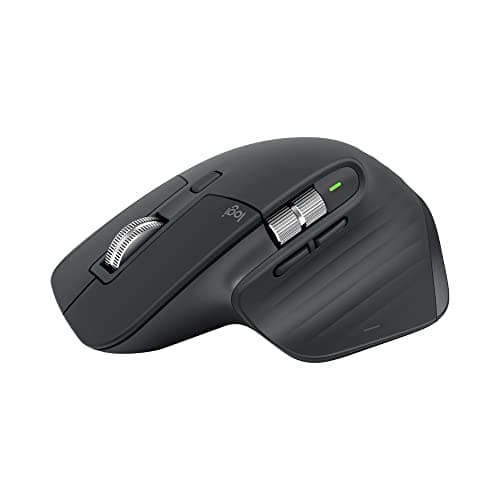
The MX Master 3S retains the silhouette that made its predecessor famous — a gently curved body that fills the palm, with a pronounced thumb rest on the left side and a natural resting angle that promotes a neutral wrist position. Logitech describes the shape as "hand-crafted," and while that sounds like marketing copy, there's genuine ergonomic engineering here. The mouse is 124.9mm long, 84.3mm wide, and 51mm tall, placing it firmly in the "medium-to-large" category.
The outer shell is a soft-touch dark gray plastic that feels premium and resists fingerprints better than glossy alternatives. For the review unit, Logitech sent the graphite colorway, which is professional and understated — it looks equally at home in a corporate office or a home workspace. A pale gray ("pale gray" in Logitech's terminology) variant is also available for those who prefer something lighter.
Pro Tip: If you're coming from a smaller mouse like a basic laptop-style peripheral, give yourself three to five days to adjust to the MX Master 3S's size. The larger footprint is intentional — it supports your entire palm and distributes weight across a wider surface area, which is why long sessions feel less fatiguing.
MagSpeed Scroll Wheel
The crown jewel of the MX Master 3S remains the electromagnetic MagSpeed scroll wheel. This is not a standard mechanical ratchet wheel — it uses electromagnetic induction to provide two distinct modes: a tactile "notched" mode for precise line-by-line scrolling, and a frictionless "hyper-scroll" mode that can rip through hundreds of pages per second.
Switching between modes is done by pressing the scroll wheel forward (toward the front of the mouse). In tactile mode, you feel distinct detents for each scroll action — satisfying and precise. In hyper-scroll mode, the wheel spins virtually frictionlessly, and the same electromagnetic system provides subtle haptic resistance that you can actually feel slowing the wheel as you release it. It's an extraordinarily clever piece of engineering that genuinely improves with use.
On the MX Master 3S, the scroll wheel has been refined further. Logitech claims the mechanism is 87% more precise than the previous generation (which was already excellent), and while that's a difficult claim to verify quantitatively, the difference is perceptible in practice — particularly when scrolling through dense spreadsheets or lengthy code files where exact positioning matters.
The scroll wheel also functions as a third button via a left-tilt / right-tilt action. I found left-tilt particularly useful for horizontal scrolling in wide spreadsheets and timeline-based applications, though the travel distance is short enough that accidental activations can occur if your grip isn't consistent.
Side Scroller and Gesture Button
Below the scroll wheel on the left side sits a slim horizontal wheel dedicated to horizontal scrolling. This is one of the MX Master 3S's most distinctive features and one that productivity users swear by. In applications like Excel, Google Sheets, or broad code editors, horizontal scrolling with a standard scroll wheel requires holding Shift — a workflow disruption that the side scroller eliminates entirely.
The thumb rest area houses two additional controls: a small gesture button (just above the thumb) and a pair of forward/back buttons. The gesture button is where Logitech's software integration gets interesting. When held and combined with mouse movement, it triggers customizable actions — swipe left for desktop view, swipe down for task view, swipe between browser tabs, and much more. On macOS, it integrates with Exposé and Mission Control natively. On Windows, it works with Logitech's Options+ software to mimic those functions.
I found the gesture button took about a week of consistent use before it became instinctive. Once it clicks, it's genuinely powerful — switching between virtual desktops, managing windows, and triggering application-specific actions all become fluid once you build the muscle memory.
Sensor and Tracking
The MX Master 3S uses Logitech's custom "Darkfield" optical sensor, capable of tracking on virtually any surface — glass, glossy tables, fabric, you name it. The DPI has been upgraded from 4,000 to 8,000 compared to the MX Master 3, which matters more than you might think. At higher DPI settings, you can move across a 4K or even 5K monitor without lifting and repositioning the mouse — a small quality-of-life improvement that compounds over thousands of daily movements.
Pro Tip: Don't automatically set the MX Master 3S to 8,000 DPI. For general productivity work at standard monitor resolutions (1080p to 4K), 1,000 to 2,000 DPI offers a good balance of speed and precision. The higher DPI settings are better suited for multi-monitor setups or users with very specific movement preferences. Experiment in Logitech Options+ — the software lets you set DPI stages that you can cycle through with a button press.
Connectivity and Charging
Connectivity options include Bluetooth and Logitech's proprietary USB-A "Unifying Receiver" (a tiny dongle that plugs into a USB port). The mouse can be paired with up to three devices simultaneously, and switching between them is handled via a small button on the underside of the mouse — a well-labeled, tactile switch that's easy to operate without looking.
Battery life is rated at 70 days with standard use, and the charging is handled via USB-C. Logitech includes a USB-C to USB-A cable in the box (for both charging and wired-connection use), but notably does not include a power adapter — you can charge from any standard USB-C phone charger or laptop port. A one-minute charge supposedly provides three hours of use, which I found accurate in practice after inadvertently running the battery flat during testing.
Performance
Everyday Productivity
In day-to-day use across Windows, macOS, and Linux, the MX Master 3S is a revelation. The combination of the scroll wheel, horizontal scroller, gesture button, and forward/back buttons creates a vocabulary of input that standard mice simply cannot match. Once you internalize the shortcuts — horizontal scroll to navigate wide tables, gesture button to switch desktops, scroll wheel tilt for horizontal movement — every other mouse starts to feel like a crippled instrument.
The reduced click noise makes a meaningful difference in shared workspaces. The MX Master 3's clicks were not loud by any standard, but in a quiet library or during a conference call, they were noticeable. The MX Master 3S's clicks are genuinely quiet in a way that defies the tactile satisfaction you still feel. It's a triumph of engineering restraint — quieter without feeling cheap.
Tracking performance on the Darkfield sensor is flawless on every surface I tested, including glass (with at least 4mm thickness), matte laminate desk surfaces, fabric mouse pads, and bare wooden tables. I was skeptical about the glass tracking claims — previous "glass-compatible" sensors I've tested have been inconsistent — but the MX Master 3S tracked reliably on every surface I placed it on during the review period.
Software: Logitech Options+
Logitech's Options+ software (available for Windows and macOS) is where the MX Master 3S transforms from an excellent hardware product into a genuinely programmable workstation. The software lets you:
- Remap every button (including scroll wheel tilt, gesture button combinations, and the side scroller)
- Configure application-specific settings (e.g., scroll wheel behavior in Excel vs. Chrome vs. VS Code)
- Set DPI stages and assign them to buttons
- Configure gesture button combinations
- Manage Easy-Switch pairings
The application-specific profiles are particularly well-implemented. When you launch a configured application, Options+ automatically switches to that app's profile — no manual intervention required. The gesture button behavior in VS Code, for instance, can be mapped to switch between open tabs, trigger VS Code's command palette, or navigate the file explorer. The same button behaves differently in Chrome or Excel, and the transitions are seamless.
Linux users should note that Logitech Options+ is not available for Linux — the company's older "Logitech Options" software has been discontinued for Linux, and there is no native alternative. This is a genuine limitation for Linux workstation users. However, the mouse still works in Bluetooth mode, and basic functionality (buttons, scrolling, tracking) works without any software. You just lose the advanced per-application customization.
Battery Life
Battery life exceeded my expectations. After three weeks of heavy daily use (roughly six to eight hours per day), the MX Master 3S dropped from 100% to approximately 35%, which extrapolates to roughly 55 to 60 days — comfortably in line with Logitech's 70-day rating. Your mileage will vary based on usage intensity and whether you're using Bluetooth (higher power draw) or the Unifying Receiver (more power efficient).
The USB-C charging is a welcome upgrade from the Micro-USB of the MX Master 3. Charging from a laptop port, I saw the battery go from near-empty to full in roughly 90 minutes. The one-minute charge for three hours claim also checked out — I charged for about five minutes before a critical meeting and had enough for the full hour-plus session without anxiety.
Comparison: MX Master 3S vs. MX Master 3
Is the upgrade from MX Master 3 to MX Master 3S worth it? The improvements — quieter clicks, higher DPI sensor, USB-C, refined scroll wheel — are meaningful but not transformative. If you already own an MX Master 3, the 3S doesn't offer enough to justify the replacement cost unless the quieter clicks are a specific requirement (e.g., you're in frequent video calls or shared quiet spaces).
For new buyers, the MX Master 3S is a no-brainer over the older model at current market prices. The MX Master 3 is still available at a discount, but the S model's improvements are worth the small premium, and the USB-C charging alone is a meaningful quality-of-life upgrade.
For a full comparison with Logitech's portable alternative, see my Logitech MX Anywhere 3S review, which covers the smaller sibling in the MX lineup.
Build Quality and Durability
The MX Master 3S feels like a precision instrument. Every surface has a deliberate, quality feel — the scroll wheel has satisfying rotational resistance in tactile mode, the side buttons click with crisp feedback, and the body shells fit together with no visible seams or flex. At 141 grams (with battery), it has a solid, premium heft that cheaper mice lack.
The scroll wheel's mechanism is the component most likely to attract concern — it's a complex mechanical system with moving magnets, and it's natural to worry about long-term durability. Based on years of MX Master 3 usage reports in the community, the MagSpeed wheel has proven reliable, and Logitech backs the mouse with a two-year limited hardware warranty.
Pro Tip: Keep the scroll wheel mechanism clean. Dust and lint can accumulate in the narrow channel around the wheel, affecting the tactile scrolling mode's consistency. A can of compressed air used occasionally around the wheel housing keeps it performing as designed.
Who Should Buy the Logitech MX Master 3S?
The MX Master 3S is not a mouse for everyone, and that's by design. At $99.99, it's a significant investment compared to basic productivity mice that cost a quarter of the price. But for the right user, the investment pays dividends daily.
Ideal for:
- Knowledge workers and professionals who spend most of their day on a computer
- Developers and writers who navigate large documents and codebases
- Anyone who uses multiple computers or operating systems and wants seamless switching
- Users who struggle with hand fatigue from smaller, flatter mice
- Anyone who relies on keyboard-free navigation for accessibility reasons
Less ideal for:
- Gamers (Logitech's G-series mice are better suited, with lower-latency sensors and gaming-specific features)
- Users with very small hands who may find the size overwhelming
- Strict left-handed users (the MX Master 3S is right-handed only)
- Budget-conscious buyers who need basic functionality without premium features
Related Reviews: PlayStation 5 Pro · DeathAdder V4 Pro · Logitech G Pro X 2 Wireless Gaming Headset Review · SteelSeries Arctis Nova 7 Wireless Gaming Headset Review
Final Verdict
The Logitech MX Master 3S is a masterpiece of iterative refinement. It takes everything that made the MX Master 3 exceptional — the MagSpeed scroll wheel, the ergonomic silhouette, the multi-device Easy-Switch, the robust build quality — and makes it measurably better in the areas that matter most: click noise, tracking precision, and charging convenience.
The $99.99 price tag is not trivial, but when you consider that a productivity mouse is typically the piece of computer hardware you touch most frequently — thousands of times per week — the cost-per-interaction becomes remarkably low. If you spend serious hours at a desk and want a mouse that makes that time more comfortable, more efficient, and more pleasant, the MX Master 3S is the benchmark against which all other productivity mice should be measured.
Logitech could have released the MX Master 3S as a minor hardware revision and called it a day. Instead, they refined the details that power users actually care about, delivered meaningful improvements without disrupting the core formula, and maintained a price point that — while premium — remains accessible for professionals who rely on their tools. That discipline is itself a kind of excellence, and it earns the MX Master 3S my full recommendation.
Buy the Logitech MX Master 3S on Amazon: https://www.amazon.com/dp/B0C2XPB2S8?tag=newgearhub-20
This review is based on a unit provided by Logitech for evaluation. NewGearHub maintains editorial independence and reviews are not influenced by manufacturers.
Pros
- 8,000 DPI Darkfield sensor tracks on any surface including glass up to 4mm thick
- MagSpeed scroll wheel scrolls 1,000 lines per second with near-silent operation
- Easy-Switch connects to 3 devices with flow cross-computer control
Cons
- $99 price premium over MX Master 3 without revolutionary improvement
- Right-hand only design excludes left-handed users entirely
- Heavy at 141g compared to 100g competitor mice for portable use
Final Verdict
[Limited Stock - Alert] The productivity mouse king. Quiet clicks, precision scrolling, and ergonomic design make long work sessions a breeze.